Getting Started
In this tutorial you install locationjoystick, grant three permissions, and walk your fake location across the map. It takes about ten minutes. Each step ends with a result you can check.
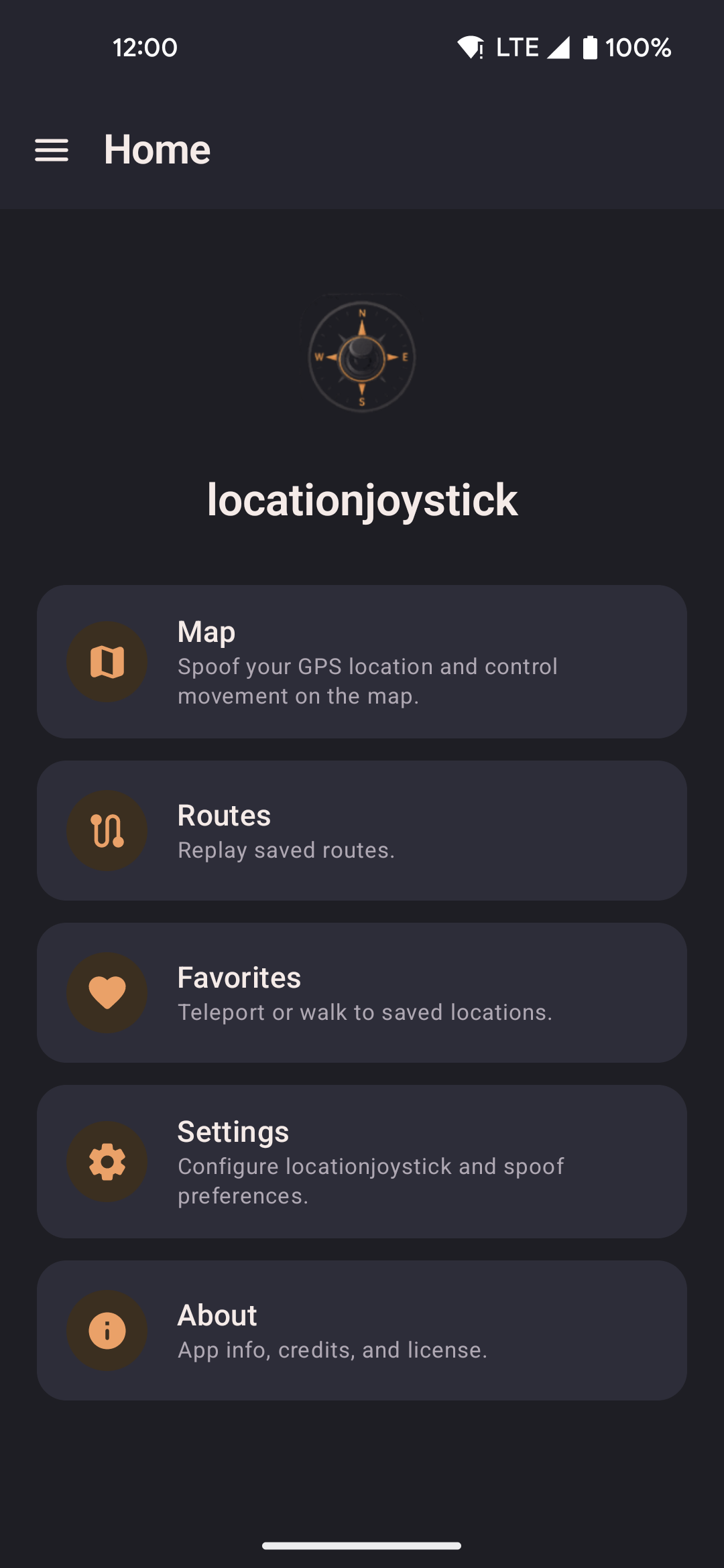
1. Install the app
Pick one. The two builds follow different release cycles.
- Google Play: the stable build. It is the safe, latest tested release. Google Play updates it for you.
- GitHub APK: the dev build. It gets changes first and can be rougher. You update it by hand.
Option A: Google Play
- Open locationjoystick on Google Play and tap Install.
Option B: GitHub APK
- Download the latest APK from GitHub Releases.
- Open the downloaded file. If Android asks you to allow installs from unknown sources, turn it on for your browser or file manager. Then try again.
- If Google Play Protect shows "App scan recommended", tap Install without scanning.
Result: The locationjoystick icon appears on your home screen. Tap it to open the app.
2. Grant the three permissions
The first time you open the app, a full-screen Accessibility notice appears first. Accept, Decline or Skip: the app works either way. Then it asks for three permissions. Once all three are granted, the last setup screen asks which game you play. See Game setup. Below the game choices is an optional Tap to Walk setup card. It asks for screen access. It is skipped on Android older than 11 and on game paths that hide Tap to Walk. You can change the game later in Settings.
- Location. Tap Allow and choose Precise location.
Result: The next setup screen appears. - Display over other apps. The app opens Settings. Turn on locationjoystick, then go back to the app.
Result: The setup screen shows this permission as granted. - Mock location app. Turn on Developer options and choose locationjoystick. Follow Turn on Developer options below, then return here. Tap Check again.
Result: The check passes and the Map screen opens.
Result: The Map screen opens with a marker at your real location.
Turn on Developer options
Android hides these settings until you turn them on. The mock location app choice lives here.
- Open Settings, then About phone.
- Tap Build number seven times. Android says "You are now a developer."
Result: Developer options appears in Settings. - Open Settings → Developer options. Scroll to the Debugging group and tap Select mock location app.
- Tap locationjoystick.
Result: locationjoystick is the selected mock location app.
If the app is not in the list, or the check fails, see Troubleshooting.
3. Take your first walk
- On the Home screen, tap the start button at the top. It turns on spoofing.
Result: The button shows that spoofing is on. - Open the side menu and tap Map.
Result: The map opens with your marker on it. - Tap a street a few blocks away.
Result: A menu opens at the point you tapped. - Tap Walk here.
Result: Your marker moves toward the point at your current speed, and the map follows it.
Want to jump instead of walk? Choose Teleport in the same menu. See Map for every option.
4. Stop spoofing
- Go back to the Home screen.
- Tap the start button again.
Result: The button is off and shows where spoofing will start next time.
Update the app
- Installed from Google Play? Open the app's Play Store page and tap Update. Your data stays.
- Installed from a file? Download the new APK and open it. Android asks "Replace app?". Confirm. Your data stays.
What you did
You installed the app, granted three permissions, and walked your marker across the map. Next:
- Map covers search, teleport, and routes.
- Overlays covers the joystick and floating widget for use inside other apps.
- Troubleshooting covers setup problems.