Map
The main screen shows an interactive map. Your current location appears as a live marker that moves as you move. Tap the map to set your position directly, or open routes, favorites, and roaming from the buttons floating over the map.
Map imagery loads from tile.openstreetmap.org as you pan and zoom, or from Amap (高德) if you pick it under Settings → Menus → Map. Once an area has loaded, it's stored on your device, so it still works the next time you're offline. After a long jump to a new place, a wider view of the area shows first, then sharper streets fill in. Zooming in close still takes a moment, but the map won't sit blank while that happens. A small credit for the map provider sits in the map's corner.
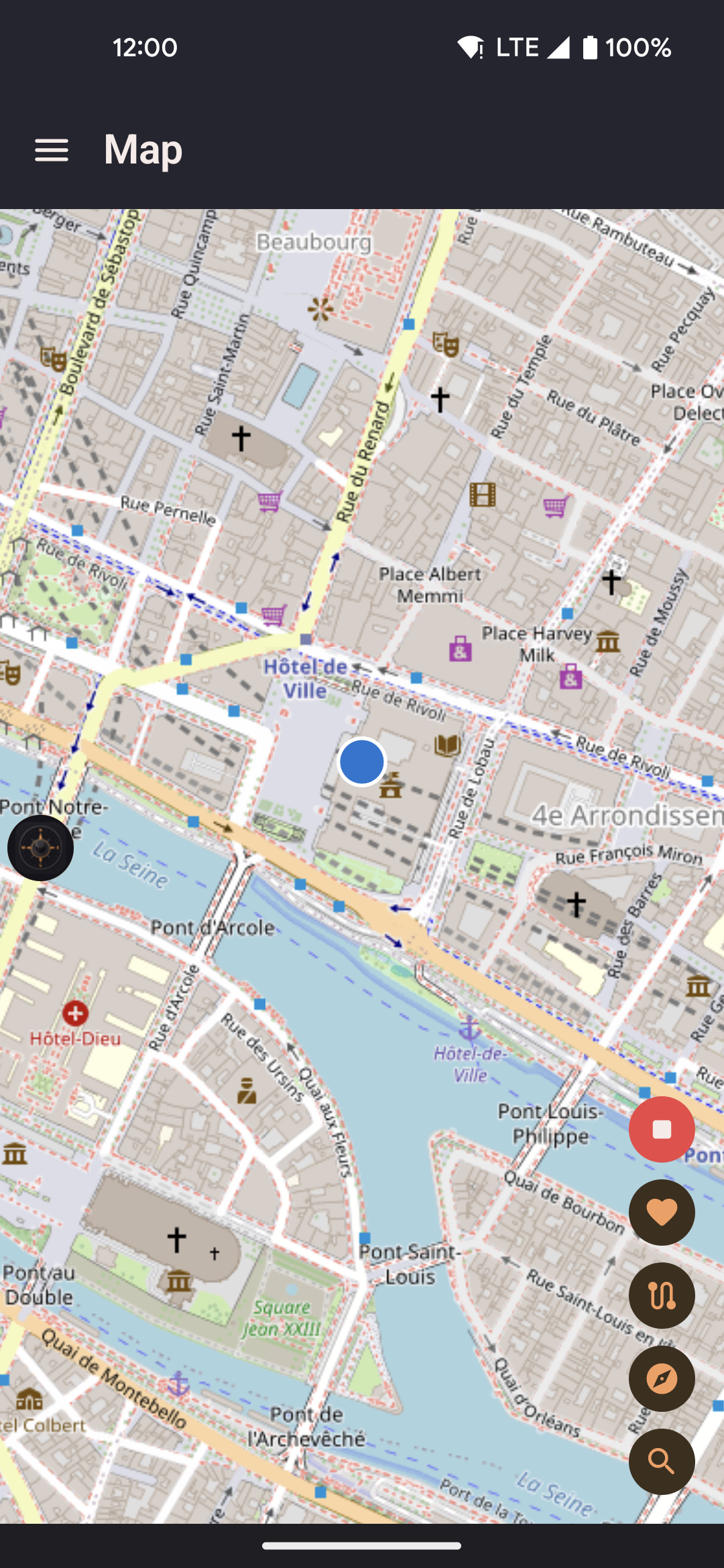
- If spoofing is on when you open the app or come back to it, you land straight on the map. If it is off, you land on the Home screen. Home is always in the side menu.
- Long-press anywhere on the map to open a sheet with "Walk here" or "Teleport here".
- The first time you open the map, it starts at your phone's real location if the app has no remembered position yet.
- Tap the start button to begin from the current map position.
- Use the center button after you've panned away. While spoofing is on, it returns to your spoofed position. While spoofing is off, it centers on the phone's real GPS without changing your saved spoofed position.
- Tap the search button to find a location by name and jump the map there.
- Once you turn on the paste button in Settings → Menus → App Features, tap it to enter coordinates such as
11.0127769, 79.48065or37°34'11.4"N 127°00'17.9"E, then teleport, walk, or save that spot as a favorite.
Location search
Tap the search button (the magnifying glass) to open a search bar powered by an open location search service. Type a place name, address, or landmark, and matching results appear as you type. Picking a result drops a marker on the map and centers the view there. See Settings → External services for what's shared with the search provider.
- Recent searches are saved on your device and shown as suggestions before you start typing.
- Picking a search result does not move your location. Long-press the marker to walk or teleport there.
- Typing coordinates directly, such as
35.6762, 139.6503or37°34'11.4"N 127°00'17.9"E, jumps straight to that point instead of running a search. It's a quick way to enter an exact spot.
Paste coordinates
The paste button (clipboard icon) is off by default. Turn it on in Settings → Menus → App Features, then tap it in the column of buttons on the map to open a box
where you can paste or type coordinates. Decimal degrees with a comma work, for
example 11.0127769, 79.48065. Degrees, minutes, and seconds with N/S and E/W
also work, for example 37°34'11.4"N 127°00'17.9"E. You can paste one point or a list.
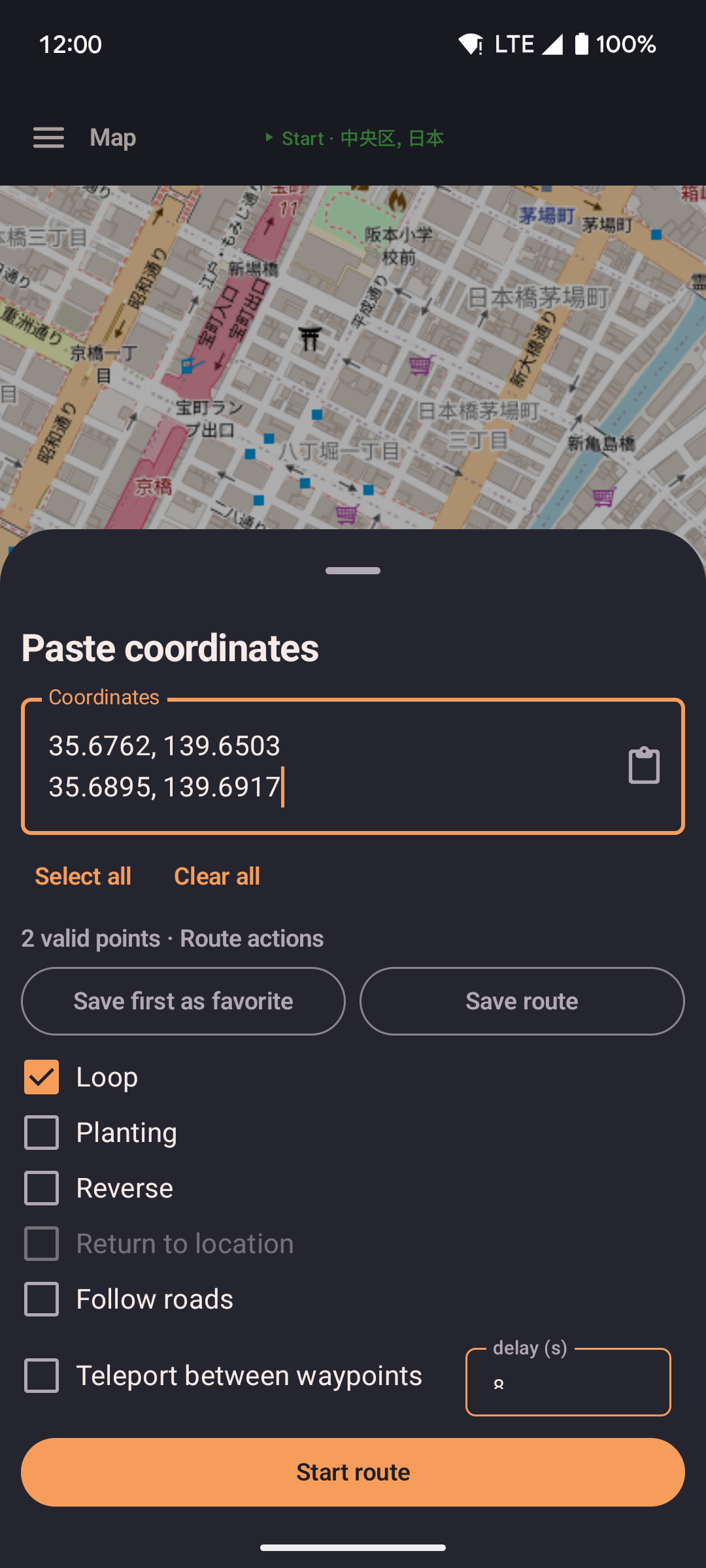
- Two points turn the sheet into route actions: Save route, the route options, and Start route.
- Tap the clipboard icon in the box to paste from your clipboard. If the box already has coordinates, the new copy is added on a new line instead of replacing what is there.
- Headings and notes can stay in the pasted text. Lines the app does not recognize are ignored as a whole, so unrelated numbers in a note are not used as coordinates.
- The box grows up to 10 lines, then scrolls inside the box. The top and bottom edges fade so you can tell there is more. Select all and Clear all sit close under it, side by side, with full-size tap areas.
- With exactly one valid point, Teleport, Walk, and Walk via roads sit on one row. Teleport jumps immediately and does not need a network. Walk via roads needs a network; if that fails, the app walks in a straight line instead.
- With two or more valid points, the single-location buttons are replaced by route actions. The point count says Route actions, and the main button says Start route.
- Save favorite keeps the first point. With a list, it says Save first as favorite so this is clear. The app asks for a name, then adds it to Favorites.
- Save route sits beside Save favorite. It needs at least two valid points. The app asks for a name and keeps that route in your list. Later pastes do not overwrite a route you saved this way, even if you reuse a name.
- With two or more points, Loop, Planting, Reverse, Return to location, Follow roads, and Teleport between waypoints become available, plus Start. Those options follow the same rules as when you start a saved route: Loop is on when the sheet opens; Planting turns Loop on and turns Return off; Loop and Return cannot both be on. Teleport between waypoints waits at the first stop, then jumps to the next and waits again — 8 seconds unless you change the delay box next to the checkbox; with Planting it walks each circle then jumps to the next. It is hidden when jump-to-location options are turned off in Settings. Until there are two points, those controls stay faded and do nothing.
- Tap Start route to play the pasted points as a real route, without needing to save first. The next time you paste and start another route, that temporary route is replaced. If you want to keep a copy, use Save route. Playing this route is the same as playing any saved route: the joystick and roaming wait until you pause.
- If the text has no valid coordinates, nothing moves and the box says none were found.
- You can hide or show this button in Settings → Menus → App Features, for the map and for the floating widget. It is off by default, so turn it on there first. It is also available on the compact map that opens from the floating widget.
- Opening a GPX file from Files, Downloads, Share, or a chat app uses this same box. The title says Open GPX, the path is already filled, and Save route suggests the original file name when the file has no name of its own. Chat apps may send the file as a generic document; this app still appears for those. It does not appear for photos or app installer files. If the app is already open, the sheet still appears. If the file is not a GPX, a short message says it could not be opened.
Tap to move
Long-pressing any point on the map opens a sheet of options. What you see depends on what's happening at the time:
| Action | What it does |
|---|---|
| Teleport here | Your position jumps straight to the tapped point immediately. There's no walking animation in between. If a route or roam was running, paused, or still fetching roads for a start, that session ends first so the jump is not overwritten. Teleport does not need a network. If you paused spoofing, tap Start again before teleport will move your location. |
| Walk here | You move from where you are now to the tapped point at your current speed, in a straight line. |
| Walk here via roads | Fetches a real road route and walks it a step at a time at your current speed. If the road route can't be fetched, that walk falls back to a straight line instead. |
| Add next point | Only shown while you're already walking somewhere. It adds another stop to the walk instead of starting a new one. The first tap turns your walk into a chain of stops: where you started, where you were headed, then the new point. Later taps just add more stops to the end. If the walk was following roads, the new stretch follows roads too. |
| Share this location | Opens your phone's share menu with a link to the tapped spot. See Share & Deep Links for details. |
Any feature that follows real roads — walking via roads, a route's road-snapping, and roaming — fetches the path from an online routing service. If that service can't be reached, the affected stretch quietly falls back to a straight line instead, and movement continues without interruption.
While a saved route is playing, the sheet shows different choices instead: Stop route and teleport, Stop route and walk here, and Finish route and walk here, which adds the tapped point to the end of the route instead of stopping it.
Routes sheet
Open your saved routes and start one straight from the map, no need to switch screens.
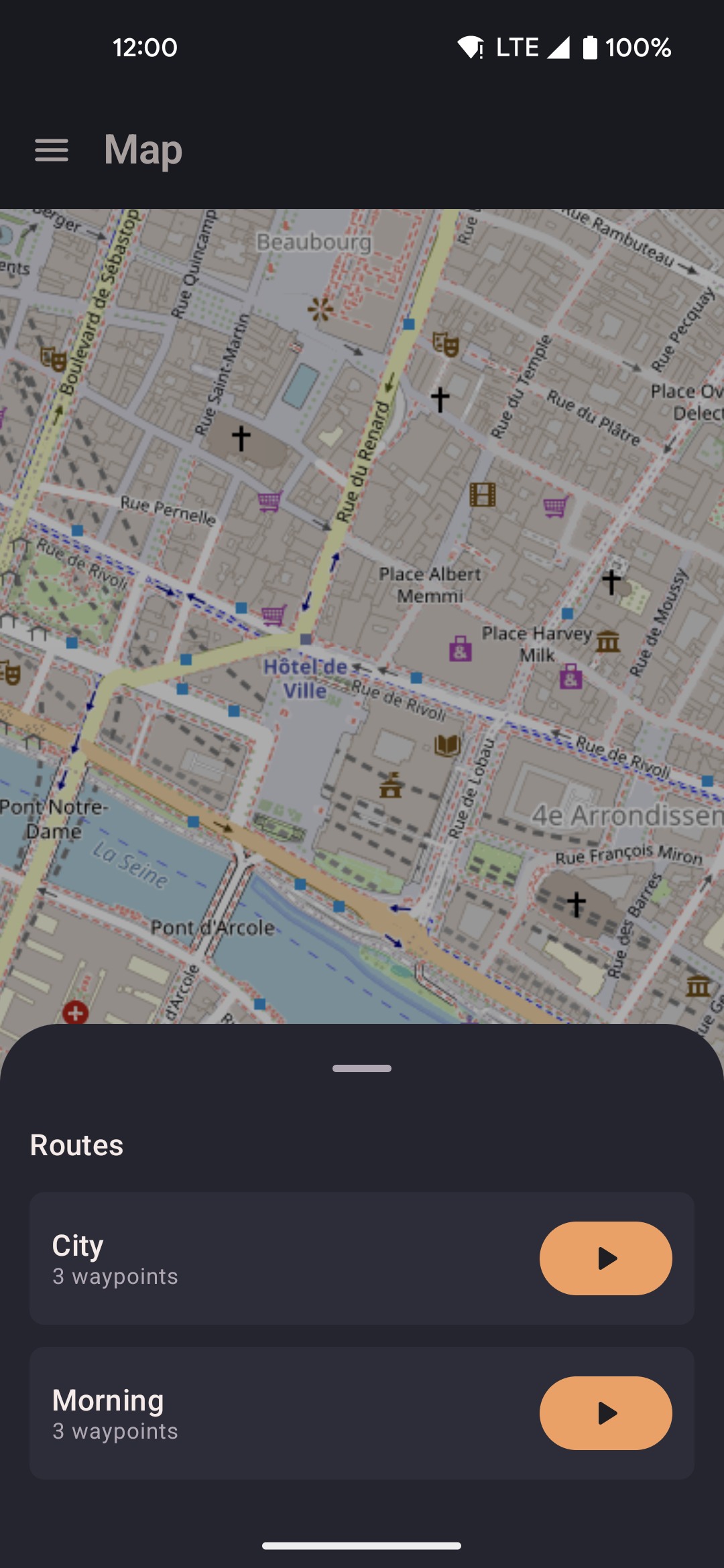
- Tap a route to preview its path on the map.
- Start, loop, or reverse the route without leaving the map screen. Start jumps to the first stop, then plays the route. Loop is on when the start sheet opens. Teleport between waypoints waits at the first stop, then jumps to the next and waits again — 8 seconds unless you change the delay box.
- While a route is running, you can watch your marker move along the path on the map. Previous stop and Next stop jump one stop at a time. With Teleport between waypoints on, you wait at that stop for the same delay, then playback continues.
- A count like
3/12appears at the bottom of the button column on the right, showing which stop you're on.
Favorites sheet
Jump to any saved favorite location without leaving the map for the Favorites screen.
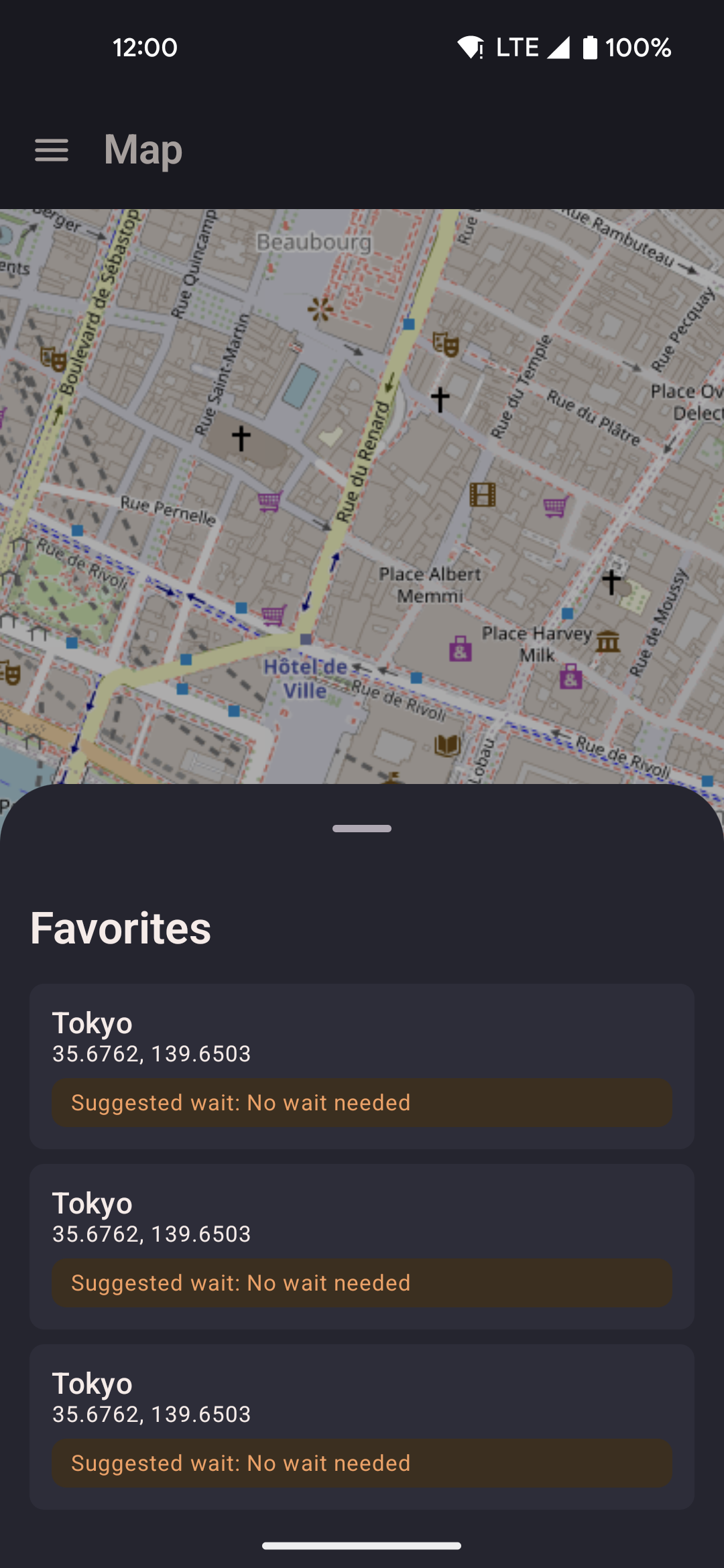
- Tap a favorite to open its detail panel with three ways to get there: Set location (teleport — this also ends a running or paused route or roam), Walk to location (straight line), and Walk via roads (follows real roads).
- Type in the search box at the top of the sheet to filter favorites by name or area. Closing the sheet clears the search.
- Each saved favorite shows its name and how far it is from where you are now.
- That distance is measured as a straight line, not the distance you'd actually travel by road.
- Tap Save current location to add where you are right now as a new favorite, without leaving this sheet.
Roaming sheet
Set up automatic roaming so locationjoystick keeps moving without you steering. There are two modes, and only one can run at a time.
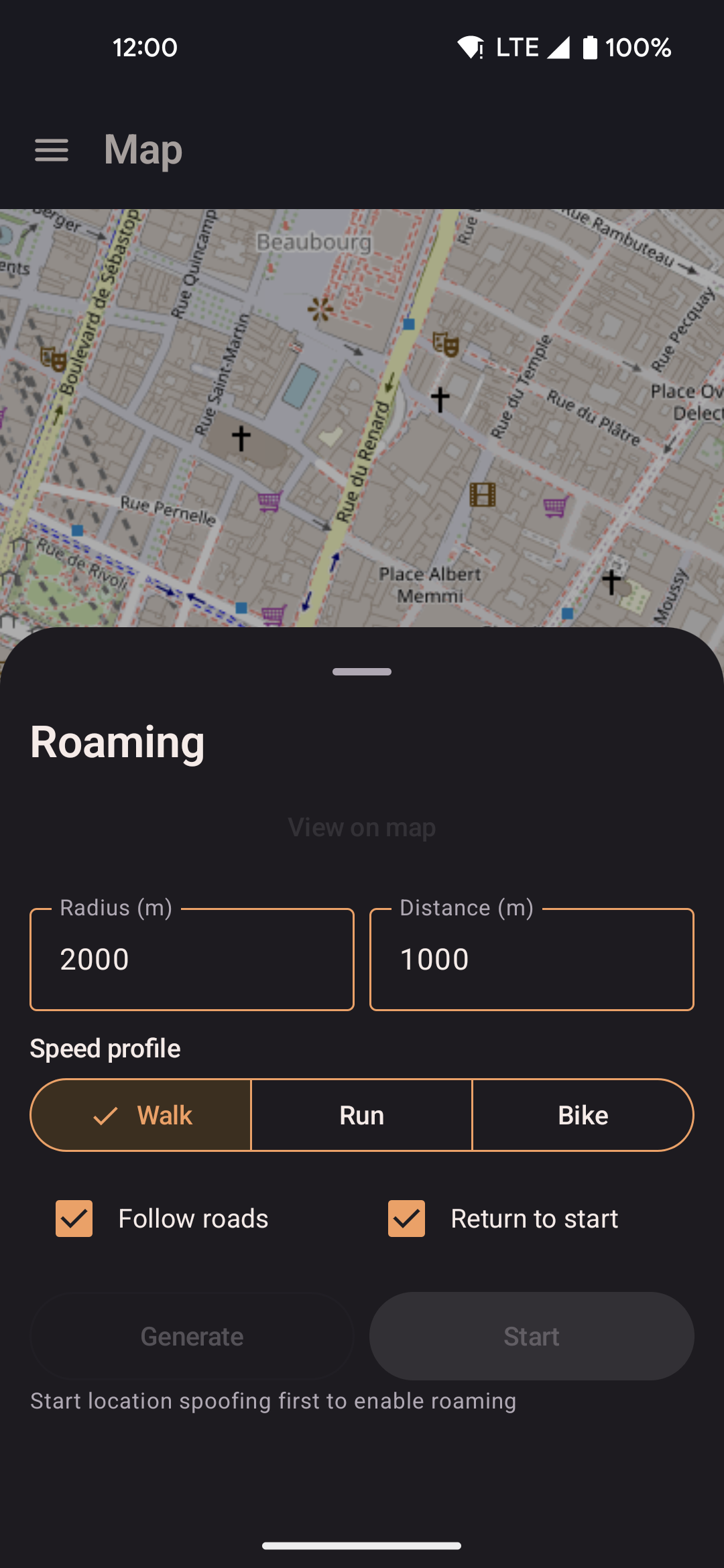
- Walk around the block picks random spots within a radius and walks between them. Set the radius and total distance, choose Walk, Run, or Bike, optionally follow roads, and optionally walk back to the start when the distance is covered.
- Planting walks a spiral around where you are now. It starts at the inner radius (5 m by default), opens out to the outer radius (39 m by default), then tightens back in. One loop is one full expand and contract. You can run it forever or for a set number of loops. Planting starts at Bike, independently of the Walk around the block speed; you can still pick Walk, Run, or Bike before you start. This is not the same as walking circles around stops on a saved route.
- Generate shows the path on the map before you start. Roaming keeps running in the background, even with the screen off. After a roam starts, changing speed in the app or with the widget speed button takes over from the speed you picked here.
- A playing route always wins. Start roaming is disabled until you pause or stop that route. After you pause, Start is available again and the paused route ends when roaming begins. The roaming button fades while a route is playing, but stays visible against its background.
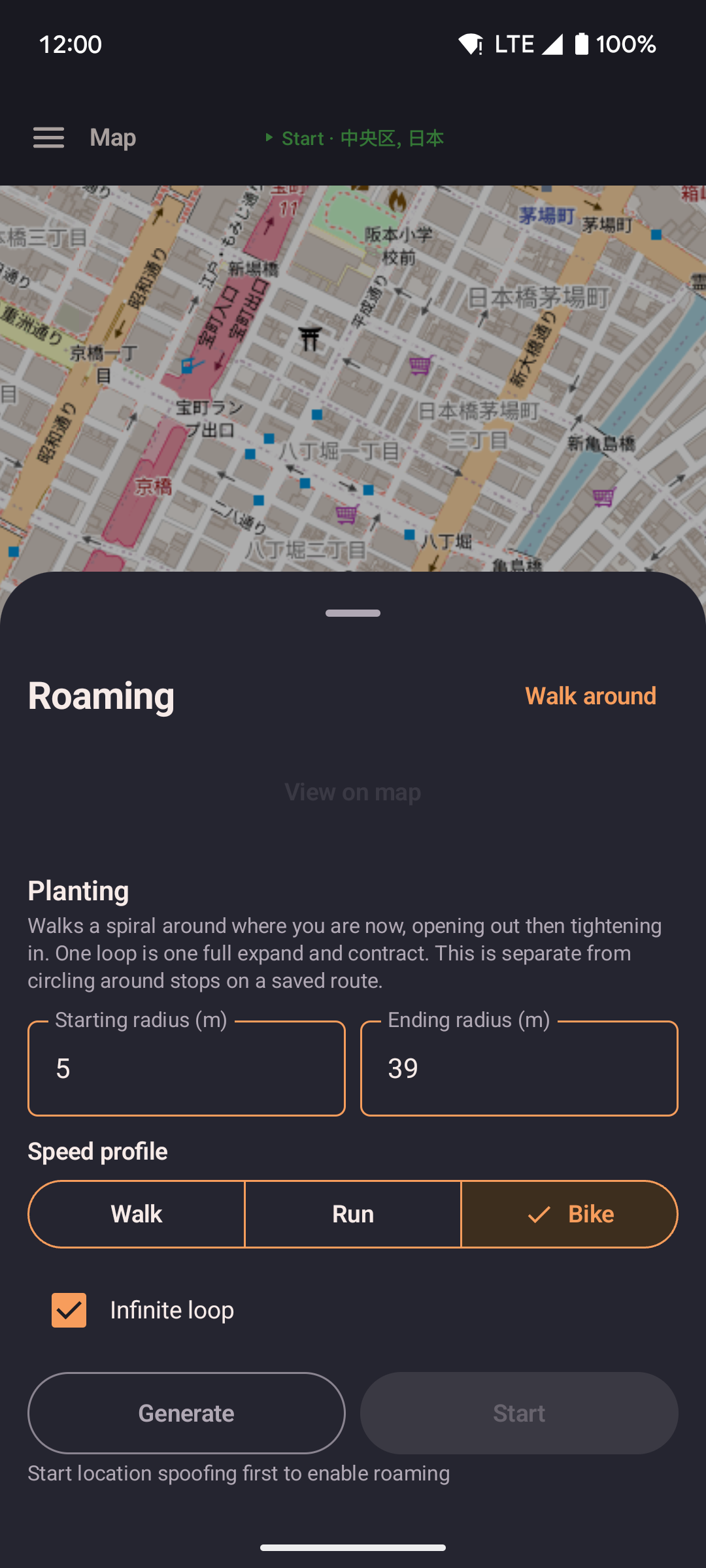
- The button at the top right of the sheet switches between the two modes. Planting shows its own starting radius, ending radius, speed, and loop count.
Wobble radius circle
Turn on Debug stats in Settings and the map draws a faint circle around your marker showing how far the small position wobble can currently drift. This makes it easy to see how the "Wobble when still" and "Wobble while moving" settings look in practice, instead of guessing from a number in meters.