Favorites
Save named places and jump to any of them right away. Favorites show up both on the Favorites screen and in the map's favorites sheet, so you can reach them without leaving the map.
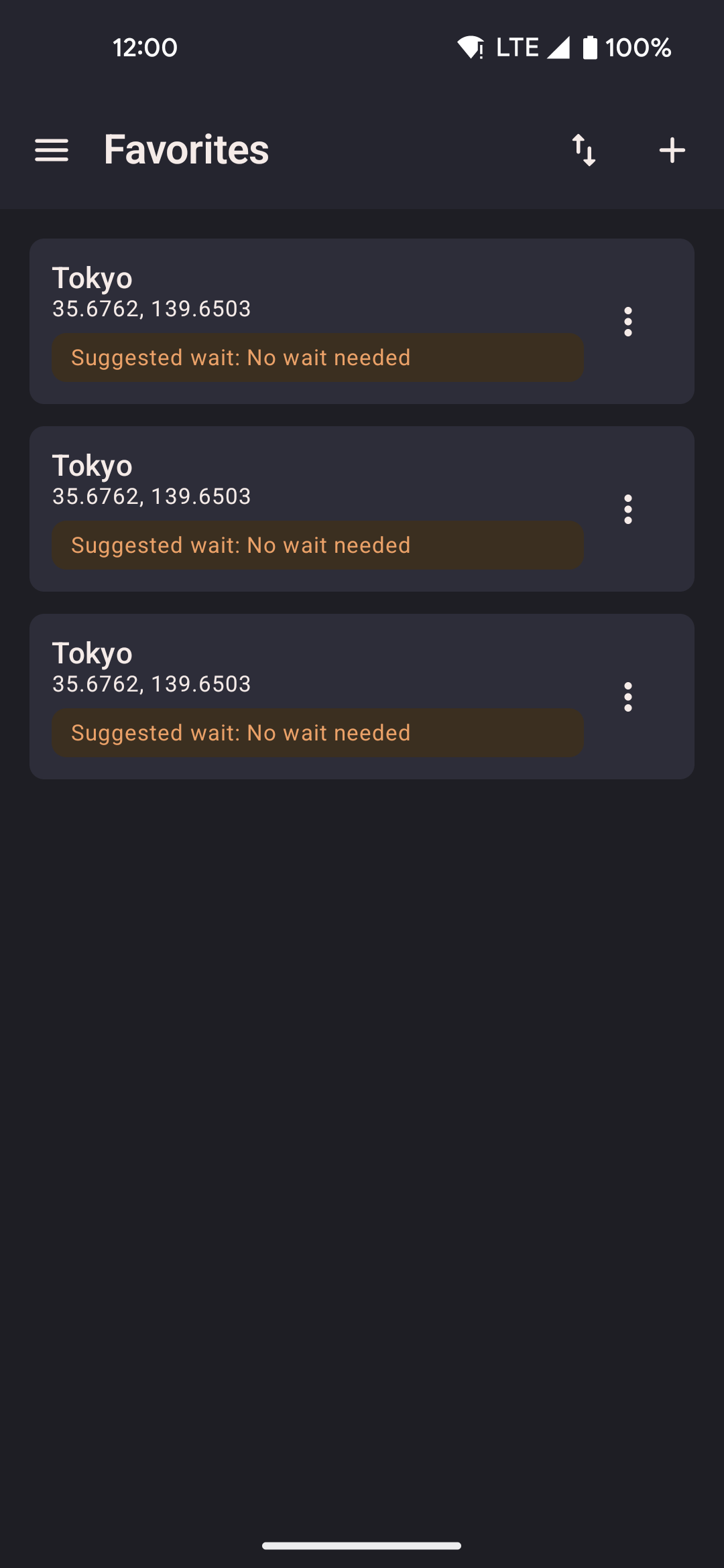
- Tap a favorite to walk there (straight line or via roads) or teleport there right away. Teleporting ends a running or paused route or roam first, then jumps.
- The share button next to Sort opens the share sheet with your current location as comma-separated decimal degrees, such as
11.012777, 79.480650. If there is no current location yet, a short message says so. The floating widget's favorites list has the same share button to the left of search, and tapping it there closes the list first so you can pick an app. - Sort favorites A–Z, Z–A, newest saved, or oldest saved. Your choice also applies to favorite lists opened from the floating widget.
- The three-dot menu on a favorite lets you edit it, copy its coordinates, send them as a message, or delete it. Copy and send use the same
lat, lontext you can paste back in later — not a web link. - Add a favorite by typing in coordinates, pasting a lat/lon pair, or by picking a point on the map.
Search and categories
A search box at the top of the Favorites screen finds locations by name or area as you type. Locations that belong to a named area, such as the curated spots described below, are grouped under that area's name to make a long list easier to browse. Locations without an area are shown on their own at the bottom. The same search is on the map's favorites sheet. From the floating widget, tap the search icon next to the close button to open a search box over the list. A share button sits to the left of search and sends your current location the same way as on the Favorites screen, closing the list first so you can pick an app. Closing the list (or hiding search) clears what you typed, so the next time you open it you see every favorite again. Open a favorite's widget detail to rename or delete it without returning to the main app.
How to add a favorite
Tap the add button at the bottom-right of the Favorites screen to add a new location.
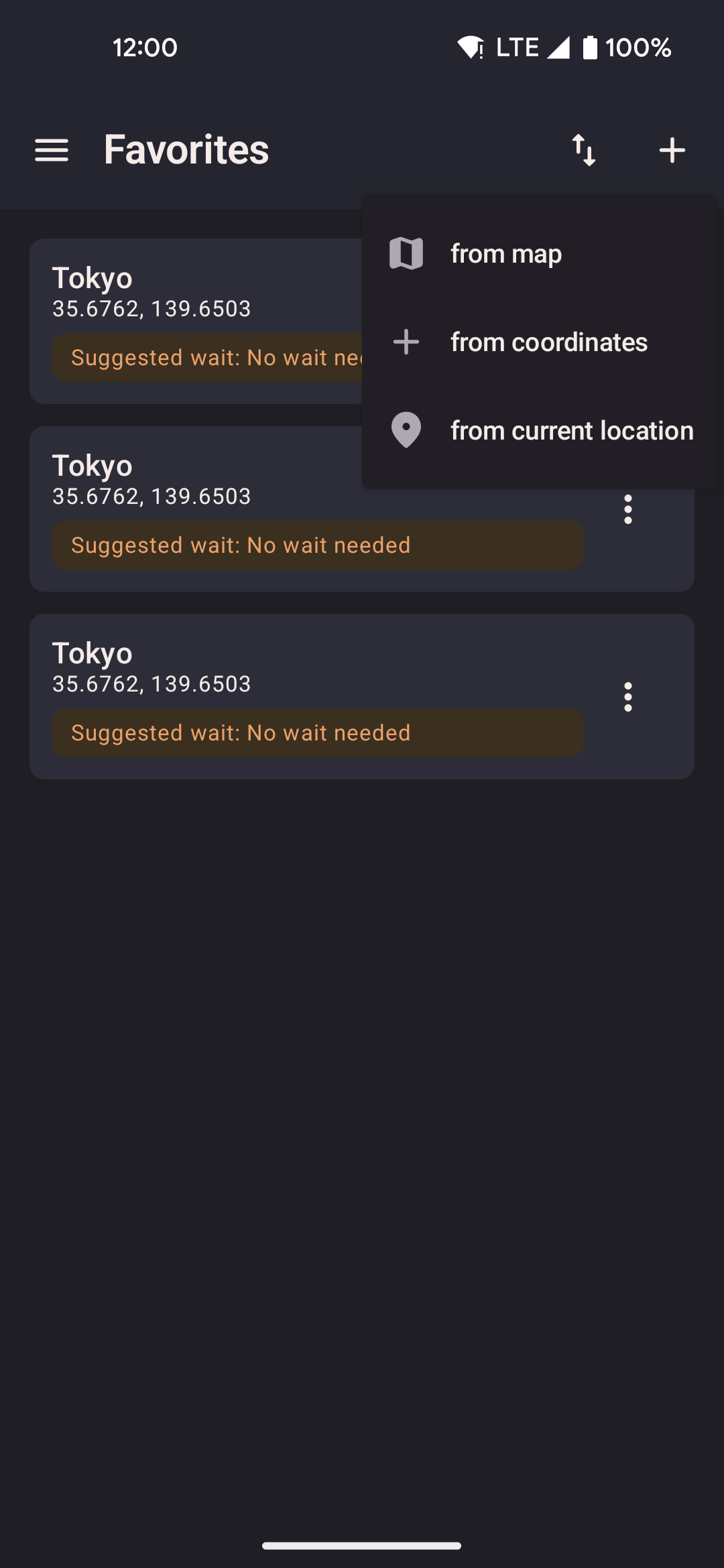
- The button opens a menu with every way to add a favorite.
- Choose "From coordinates" to type latitude and longitude in separate boxes, "Paste coordinates" to paste a pair such as
11.0127769, 79.48065or37°34'11.4"N 127°00'17.9"E, "From map" to pick a point on the map, or "Use current location" to save where you are right now. On the map screen, the paste button can also save a pasted pair as a favorite after you enter a name. - Paste coordinates asks for a name and the coordinate text. If you leave the app to copy the numbers from somewhere else, the form stays open until you save or cancel.
Hot locations
In Settings, under Favorites, turning on Show hot locations adds a curated list of popular spots around the world to your favorites: cities, parks, and landmarks that come in handy for spoofing your location. This is off by default.
- Turning it off removes only the entries this feature added. Your own favorites are never touched.
- The setting sticks across app restarts and is included when you export or import your data.
- Each curated spot keeps its country as its area name once added, so it stays grouped in the Favorites list.
Map picker
When you add a favorite "from map," a full-screen map opens. Tap to place a pin, or use the search bar to find a location by name. See Settings → External services for what's shared with the search provider.

- Search by place name to jump the map to a specific address or landmark.
- Tap the map to move the pin to any exact spot.
- Confirm to save it with a name of your choice.